Restore the photo. Keep the story
Start with a clear scan or phone photo of the print. Cirluma can reduce tears, creases, scratches and fading while keeping the people recognisably themselves.
The Original is never changed. Every restored version remains connected to the names, places and family stories behind it.
What Restore can do
Start with a clear scan or photo of the original print. Choose Gentle for light dust and fading, Balanced for most old photos, or Strong for tears, stains and more visible damage.
Where part of the Original is missing or unclear, Restore may generate new detail. Generated details are clearly labelled, so your family can distinguish them from what is visible in the source photo.
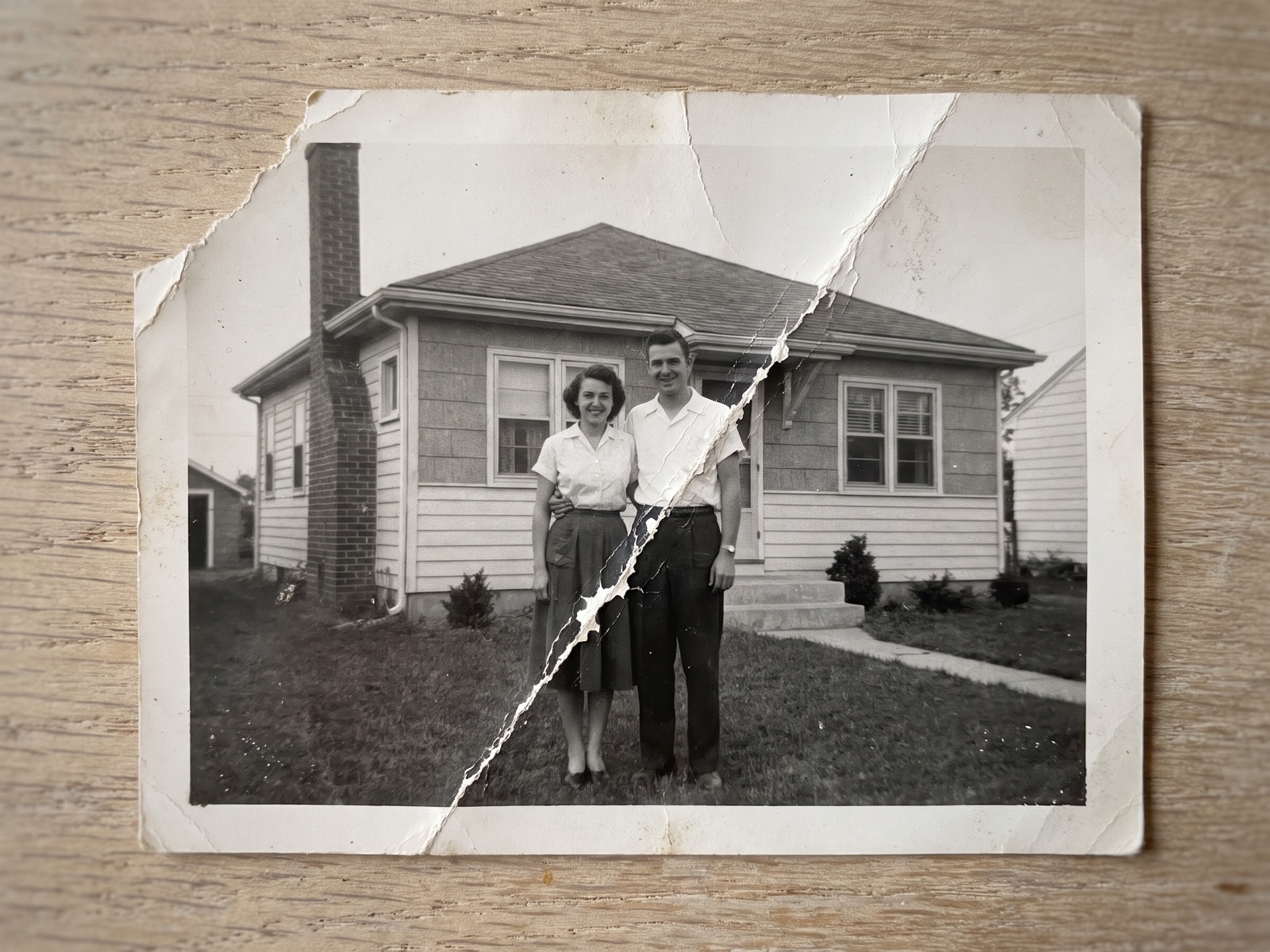
Tears and creases
Reduce folds, cracks, creases and torn edges while keeping the people and important details true to the source photo.
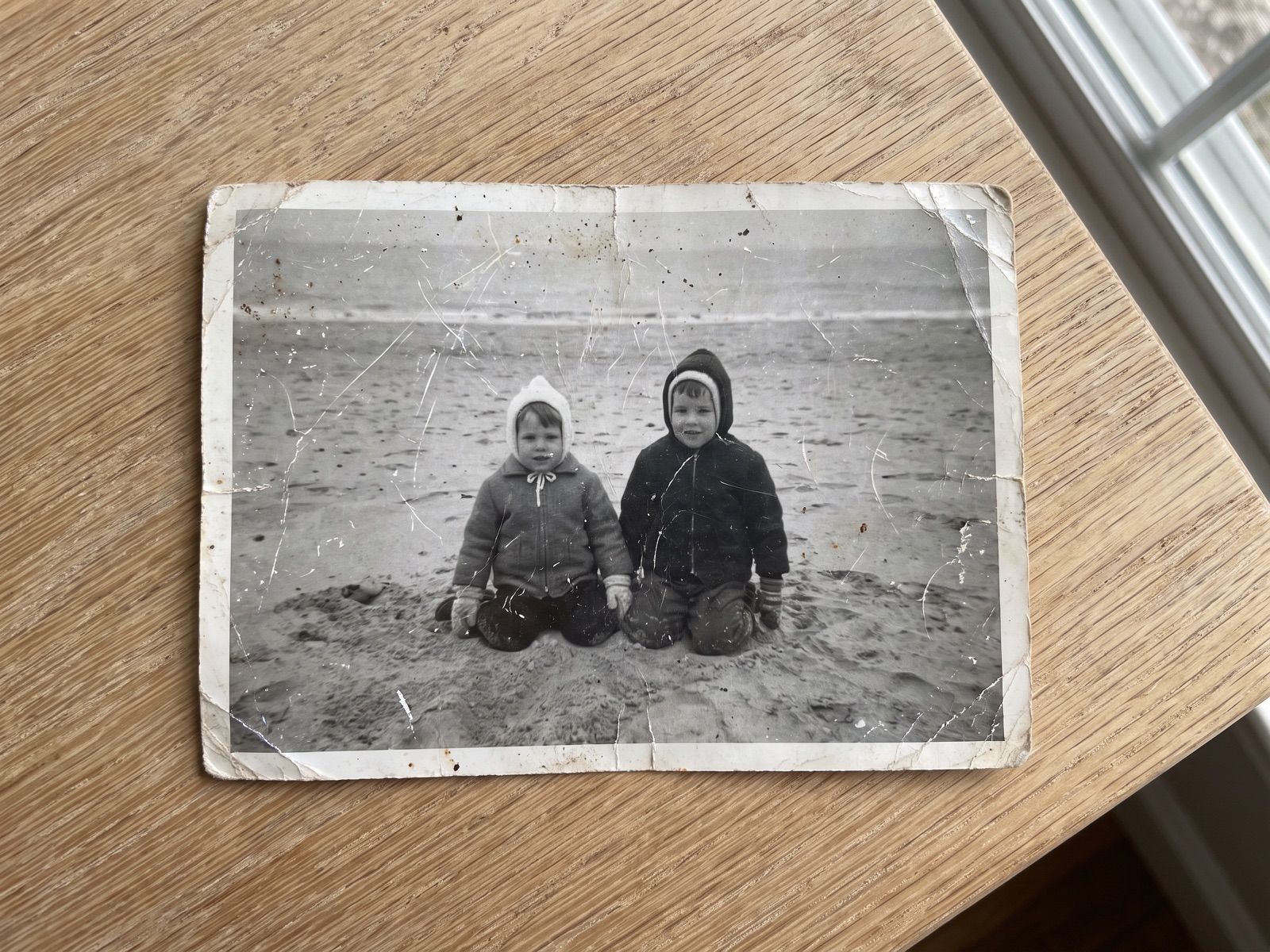
Scratches and dust
Clean up scratches, dust and marks left by years of handling and storage.
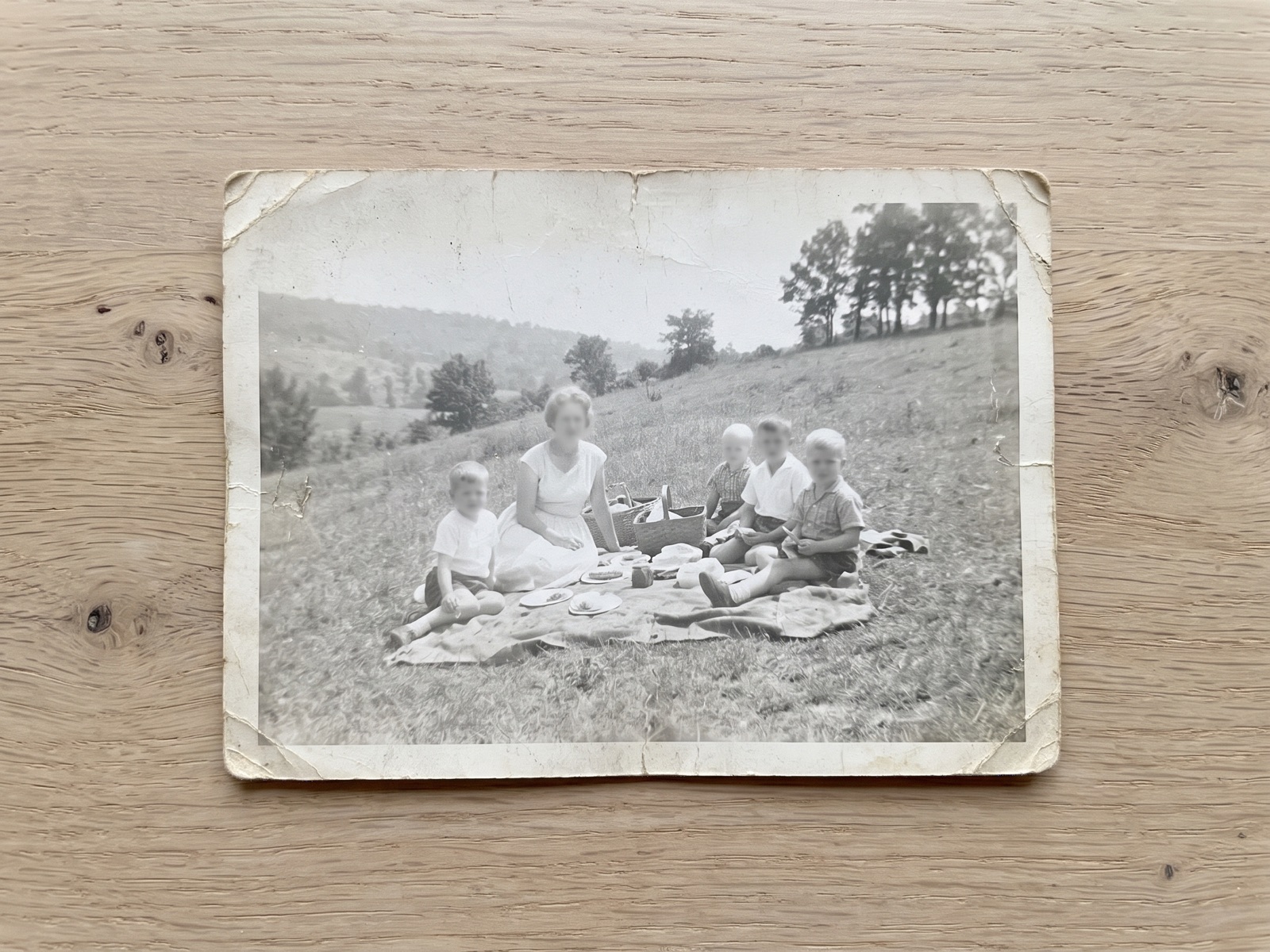
Fading
Bring back contrast and make details clearer in prints that have become pale or washed out.
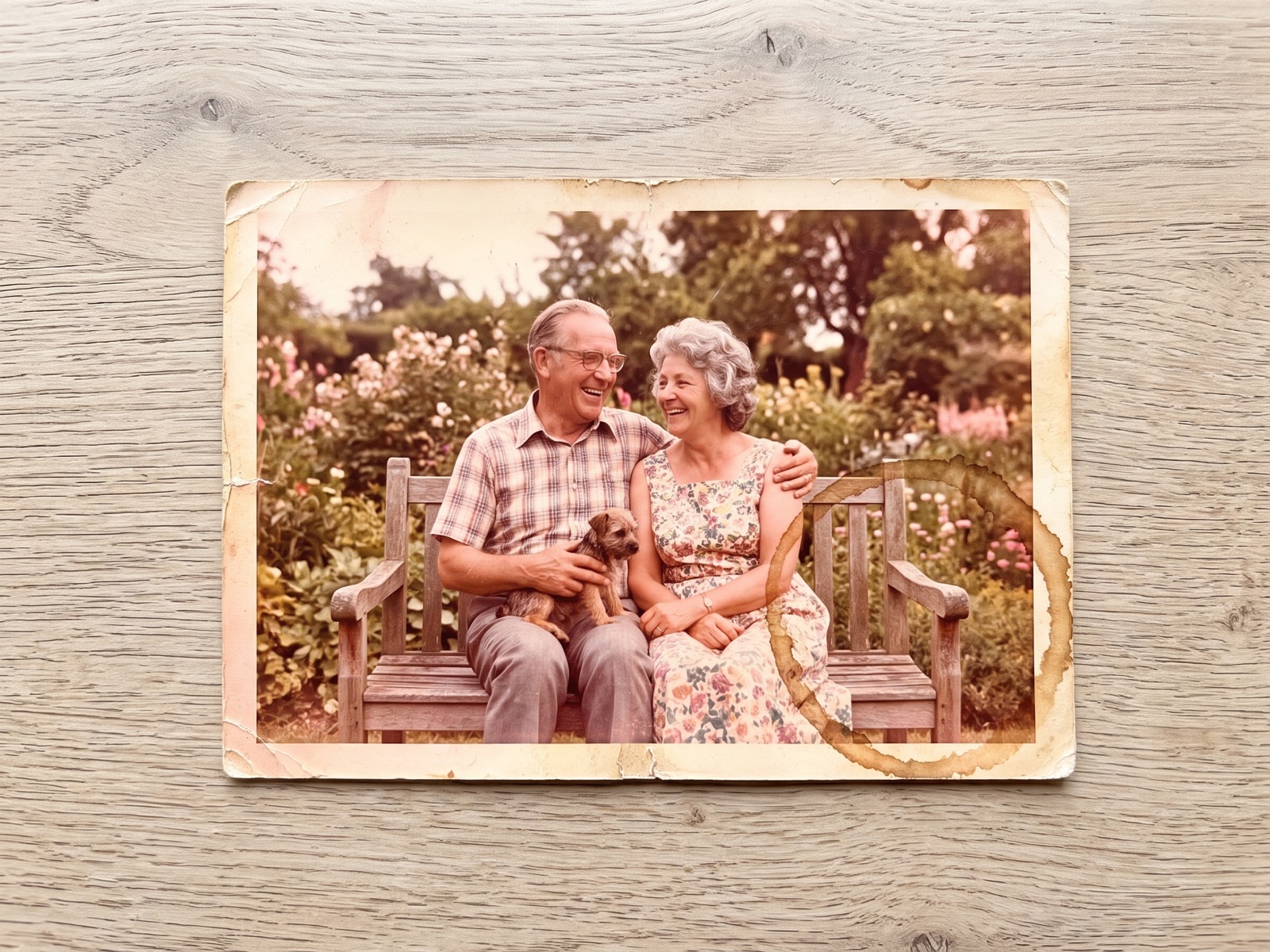
Stains and colour casts
Reduce water marks, discolouration and unwanted yellow, pink or other colour casts.
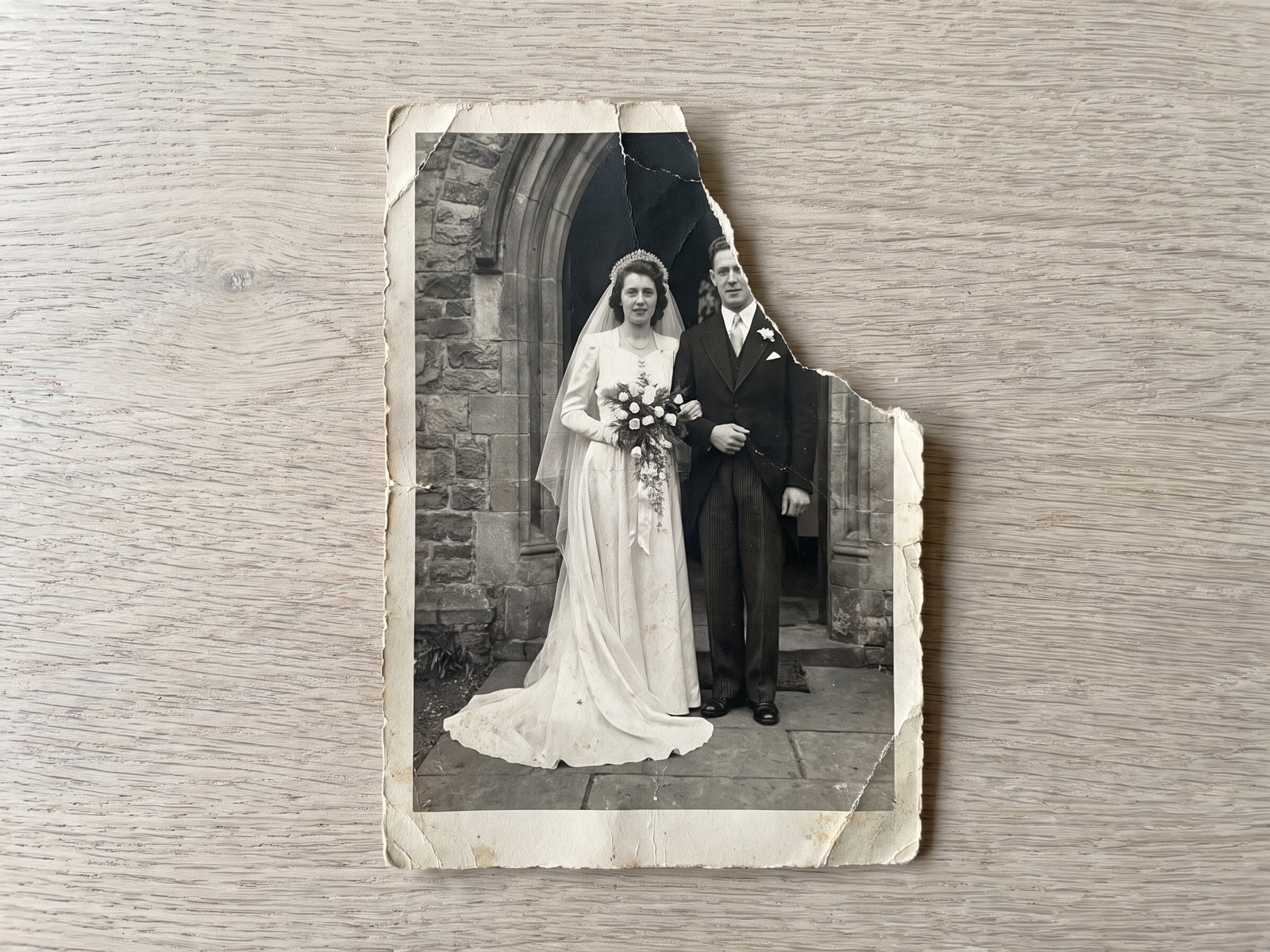
Missing pieces
Reconstruct a lost corner or small damaged area using the available details in the source photo.
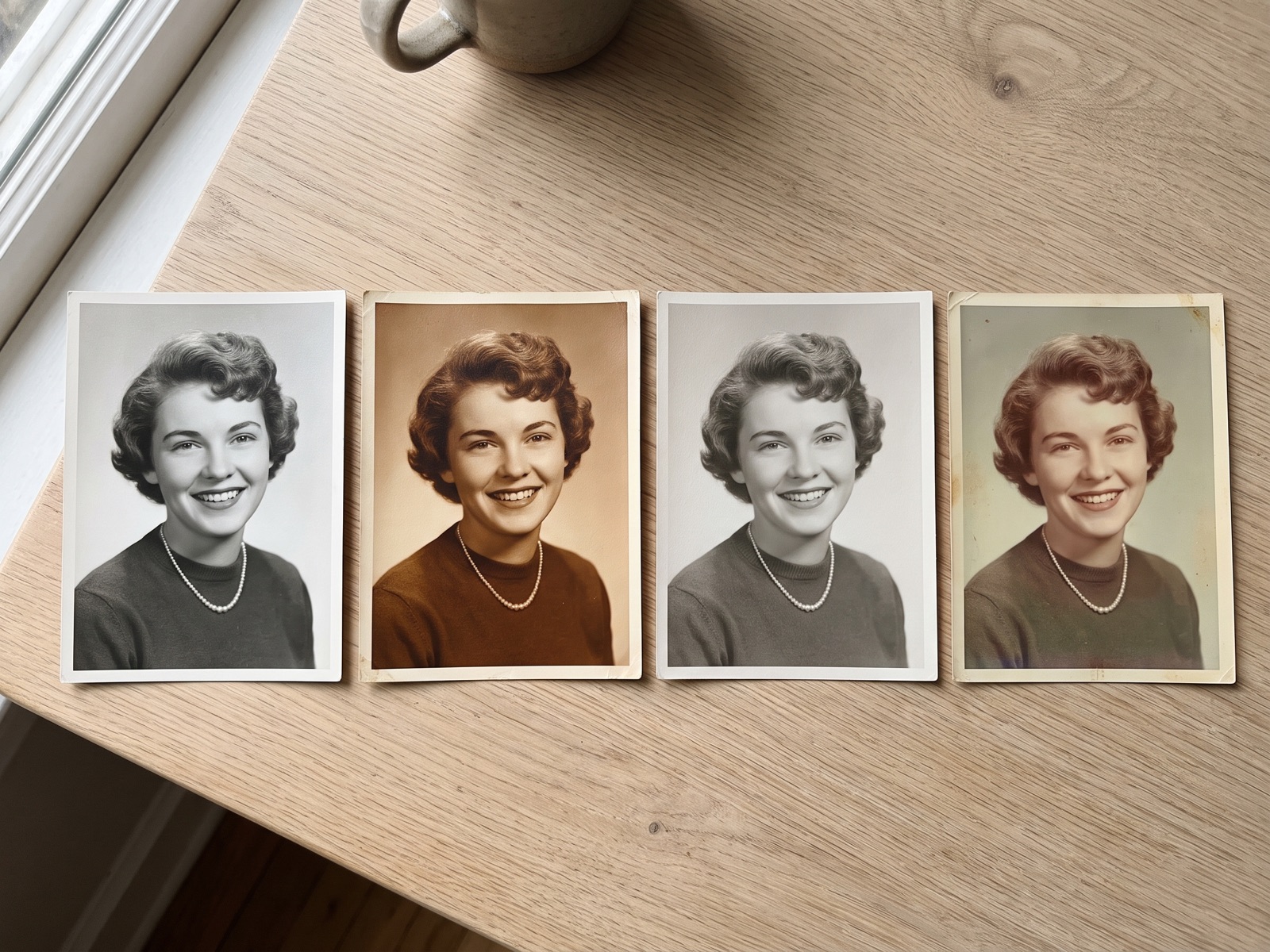
Choose the finish
Keep the original tone of the print or choose a gelatin silver, platinum, sepia or colour finish.
Start with a clear image of the print
A good scan or clear phone photo gives Restore more detail to work with. Use whichever method is safest and easiest for the original. If you are using a scanner, scan the whole print, including its edges. Scan the back as well if it contains names, dates or handwritten notes. If the print is fragile, stuck to glass or fixed inside an album, do not force it out. Scan it or take a photo of it safely where it is.
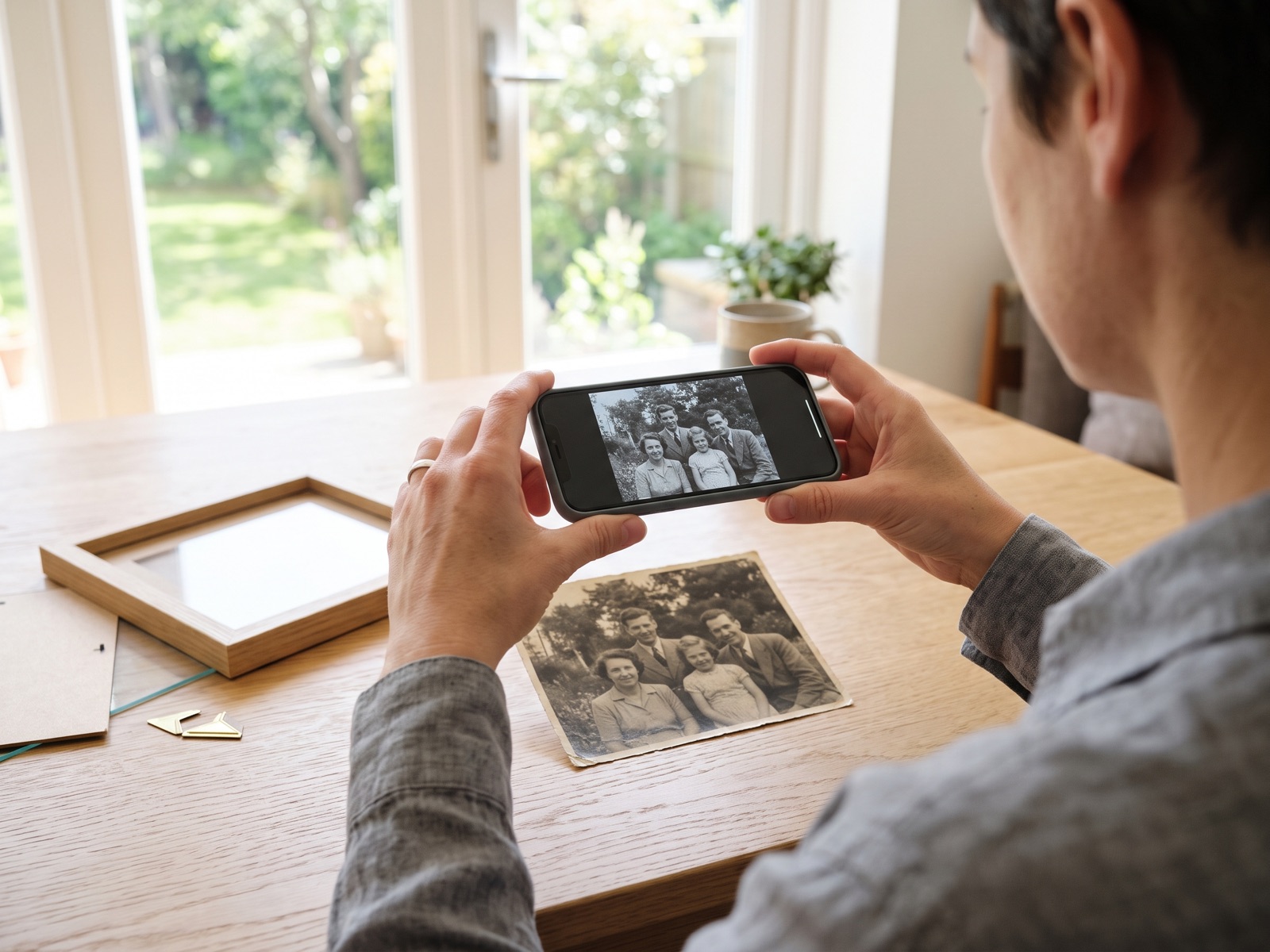
If you are using your phone
- Remove the print from its frame or sleeve, if it is safe to do so. Glass and plastic can create glare and reflections.
- Lay the print flat near a window. Use indirect daylight and turn off the flash.
- Hold your phone directly above the print, keeping the sides as straight as possible on the screen.
- Fill the frame without cutting anything off. Leave a little space around the edges.
- Take a photo of the back as well if it contains names, dates or handwritten notes.
When facial detail is missing
When a face is damaged, faded or unclear, the Original may not contain enough detail for Restore alone.
A Likeness reference uses other photos of the same person to help guide the reconstruction.
It can help create a more recognisable result, but cannot recover missing detail or guarantee an exact reconstruction.
What you’ll need
- Several clear photos of the same person
- Photos from a similar period of life, where possible
- Permission to use the selected photos
- The person’s agreement, if the person is living
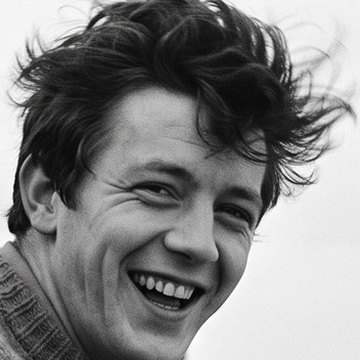
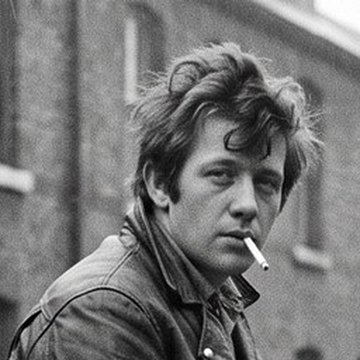


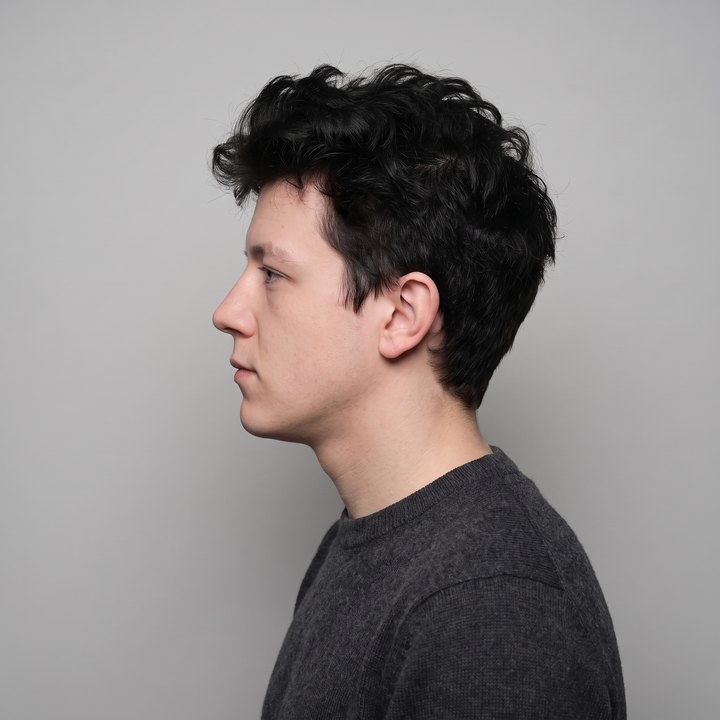
The story stays with the photo
Restoring a photo does not separate it from the memory your family has preserved. Every Creation remains connected to the Original and to the names, voices and stories around it.
- The Original is always kept unchanged.
- Restores, Reshoots and Reframes are saved separately and clearly labelled.
- Names, dates, places, stories and voice notes remain connected to every version.
- People guided by a Likeness reference stay named and easy to find with their other photos.
- Creations can be downloaded to keep, share or print.
Compare the results
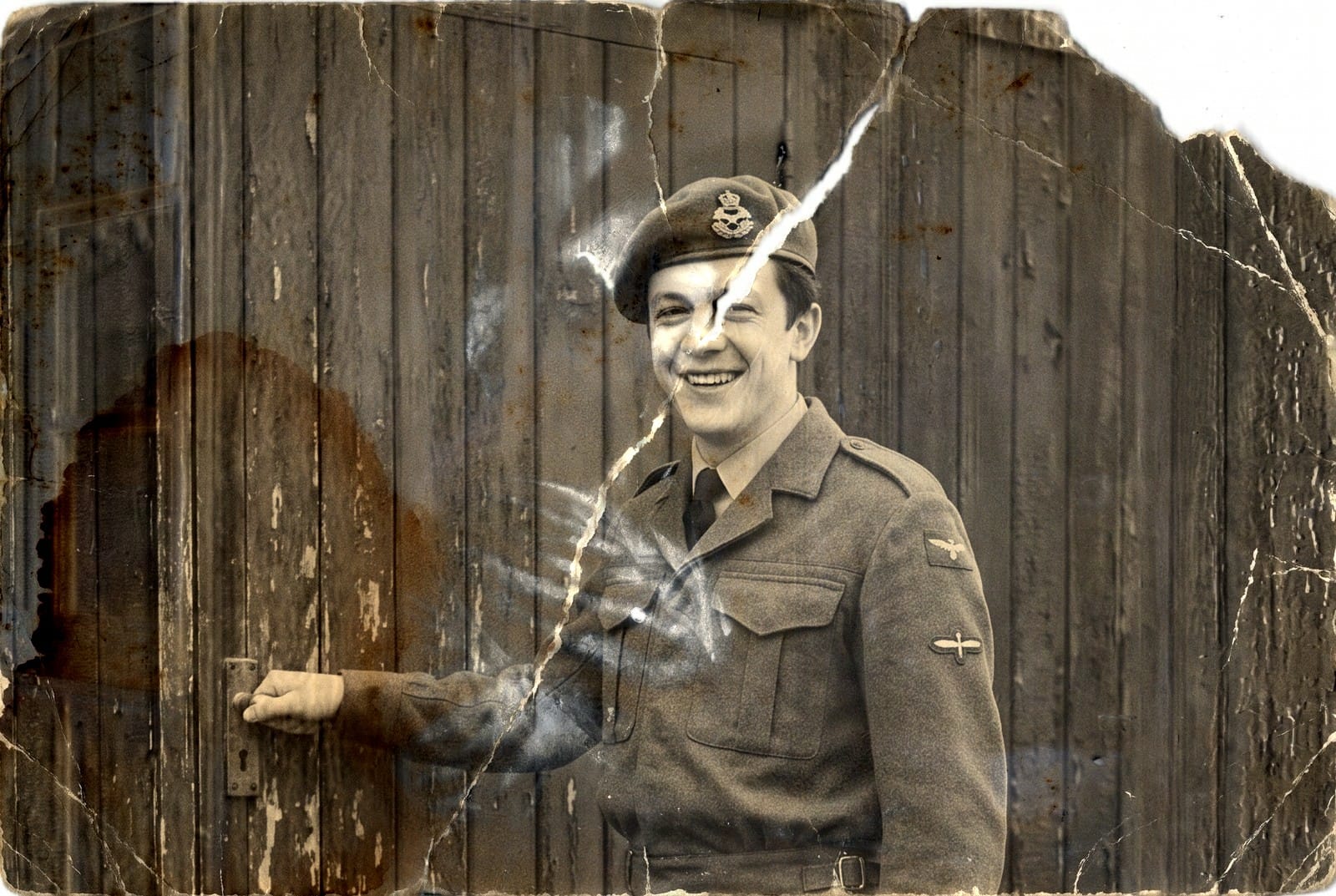
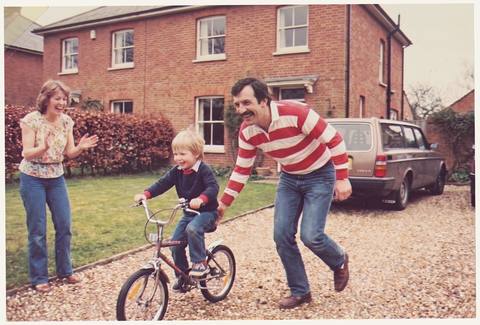
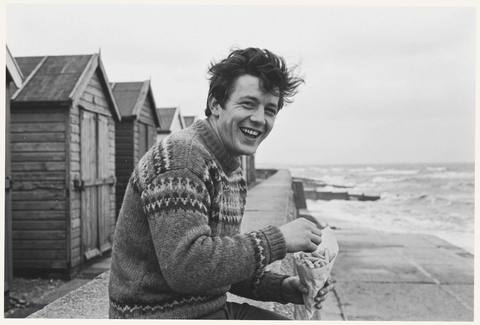
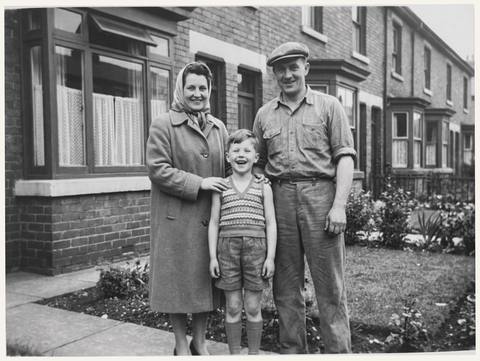
Drag across Roger’s print to compare the Original with the available Creations. Each Creation is saved separately and clearly labelled, so the source photo always remains identifiable.
Restore Reduce fading, scratches, creases, tears and other visible damage to create a clearer version of the original photo.
Reshoot Create a more photographic interpretation of the same moment while keeping the people and important details connected to the Original. A Reshoot is a generated interpretation, not a recovered historical image. Review it carefully before sharing it as a record of the past.
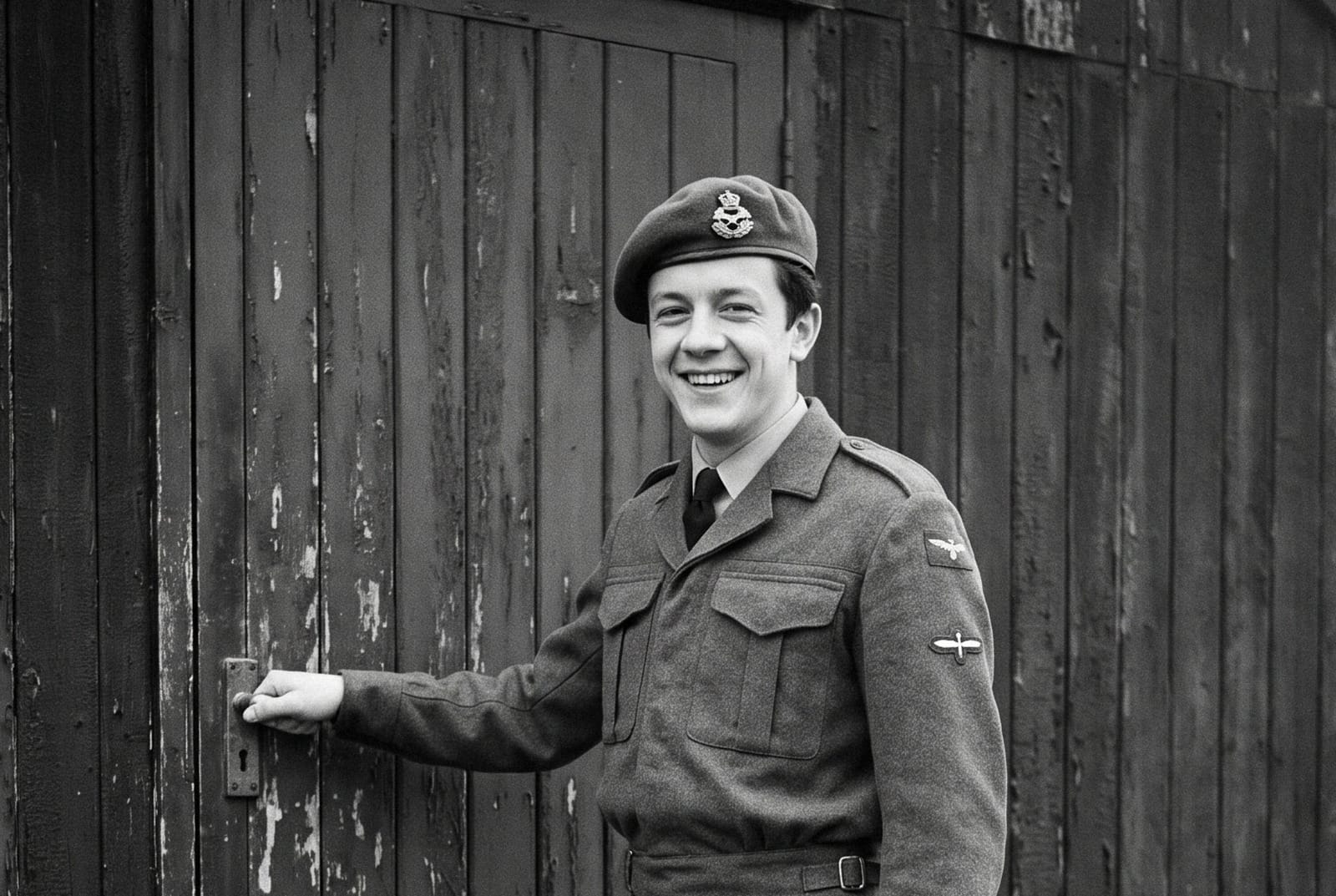
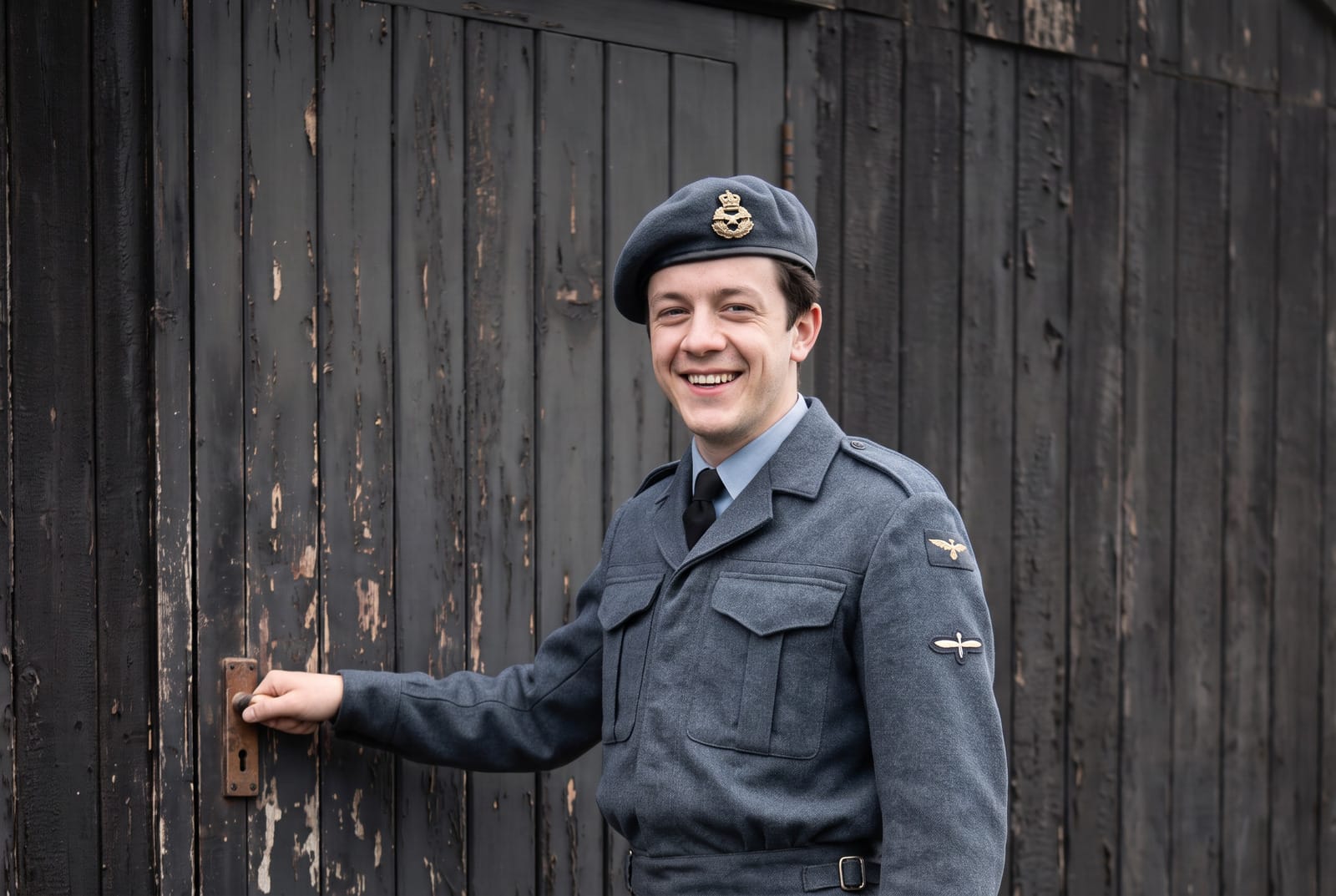 OriginalRestoredReshot
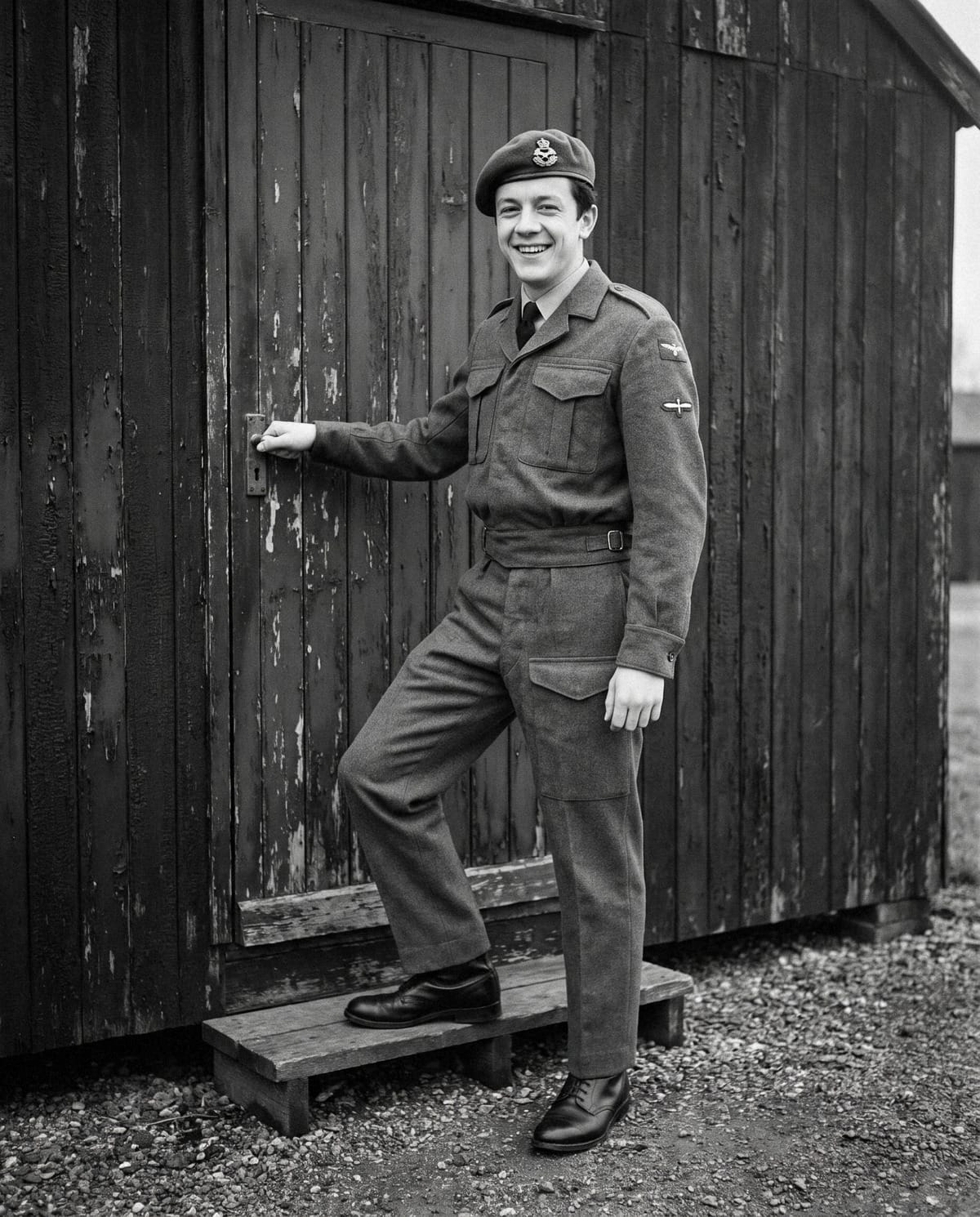
The Original frame, reframed to 4:5
Reframe
Adapt a photo to a different shape by extending the scene beyond its original edges.
Anything created outside the boundaries of the source photo is generated and clearly labelled.
What can I create with credits?
Restore a photo
- Standard quality, 2K5 credits
- High quality, 4K7 credits
Reshoot a photo
- Standard quality, 2K5 credits
- High quality, 4K7 credits
Create a Likeness reference
- Front view and two additional views6 credits
Update a Likeness reference
- After making adjustments4 credits
Reframe is part of a Restore or Reshoot. Choosing a new shape costs nothing extra.
If Cirluma cannot complete a creation because of a technical problem, the credits used for that attempt are returned automatically.
Frequently asked questions
Will the edited version be historically accurate?
Cirluma aims to keep restorations and reshoots faithful to the source photo. You can provide details you know, such as colours that are unclear in the original, before creating a version. Cirluma checks the result for added people, animals or objects within the original photo area. If the image is extended, it also checks additions outside that area for unnecessary or period-inconsistent details. Results the check flags are held back, and the Original is never changed. AI can still make mistakes, so review the result before treating it as a historical record.
What is a Likeness reference?
A Likeness reference helps keep a person recognisable when facial details in a photo are damaged, unclear or partly missing. Choose other photos of the same person, ideally from a similar period of their life. Cirluma prepares reference views for you to review, and you can then choose that Likeness reference for a face when restoring or reshooting the photo.
It cannot guarantee an exact reconstruction. The reference photos and Original remain unchanged.
Who can create a Likeness reference?
Any member of an active Circle can create a Likeness reference of a person in that Circle, using photos of them that any member uploaded.
Before creating the first Likeness reference of someone, you confirm that you have the right to: for a living person, that they agreed. You also confirm that the reference photos you select will be processed by an external AI provider. A read-only Circle cannot create new material.
Can I print a restored photo?
Yes. You can prepare a high-resolution version in the shape you need for a frame or album, then download it for printing. Cirluma does not sell prints.
Who can restore a photo?
Any member can restore a photo they uploaded, using creation credits they have bought themselves. Credits belong to the person who bought them, not the Circle.

Start with one photo
Restore the print, then ask the person who remembers it what was happening.