Restore a photo with your phone: a beginner's guide
All you need is the print, a window and a few minutes. How to take one good phone photo of a damaged print, restore it without touching the original, and keep the story with it.
Photos and restorationBy Joe Brazao3 min read
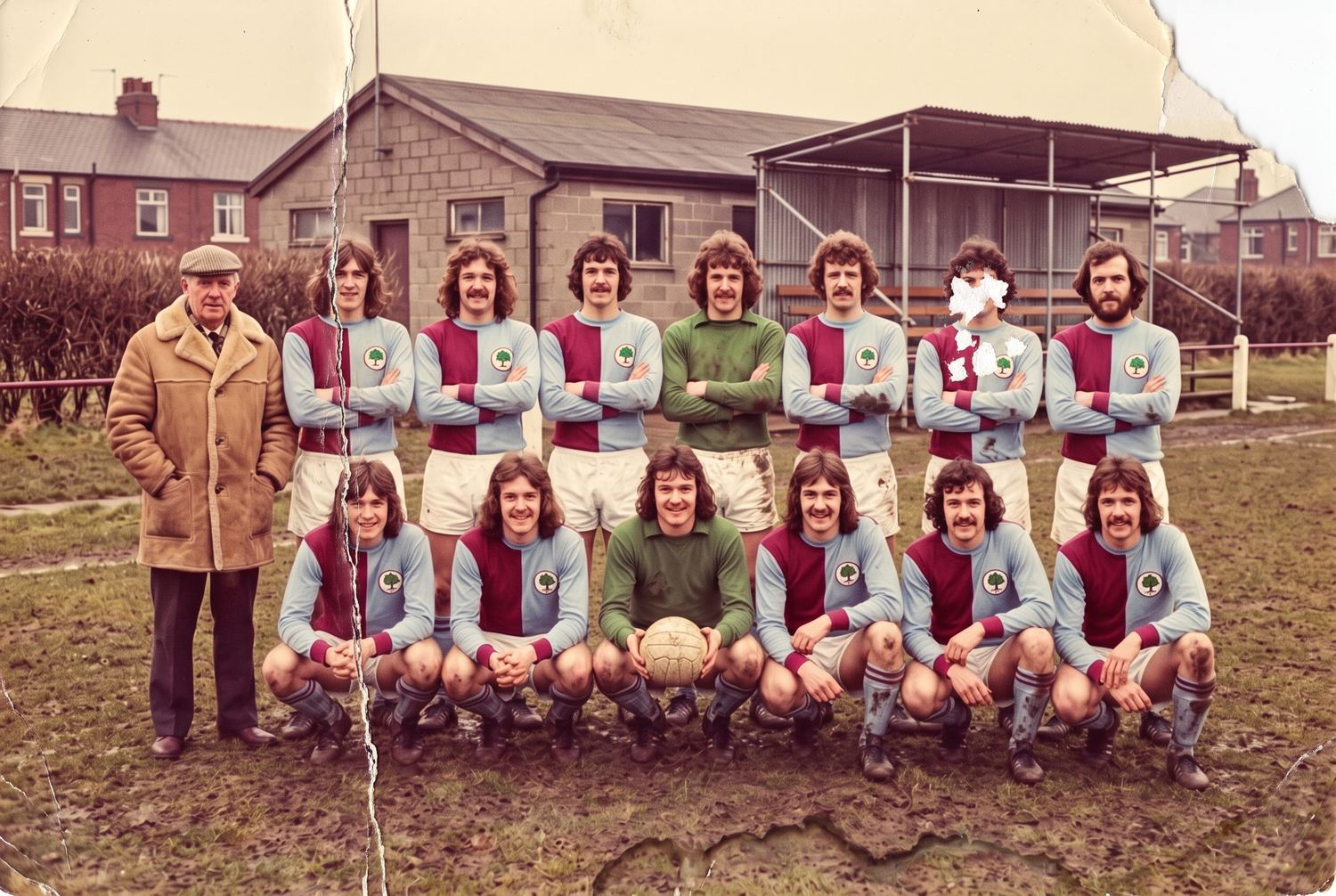
You can restore a photo with your phone. All you need is the print in front of you, decent light and a few minutes. No scanner, no software and no technical skill.
Why one phone photo is enough
A modern phone camera captures more detail than most old prints still hold. Cirluma restores the photo from that one shot: it lifts the creases, stains and fading, and rebuilds what the damage covered, designed to keep every face recognisable.
That matters when the print lives in someone else’s house. You are visiting, the photo is in a drawer, and you have your phone. Take the shot before you leave the room.
Step one: pick a print to start with
Choose one with a crease, a mark or a torn corner. A fold across the middle is a good first try, because the damage is easy to see and easy to judge afterwards. Start with one print. You can line up the rest once you have seen the result.
Step two: take one good photo of it
Put the print flat on a dark, plain surface near a window. Daylight without direct sun is easiest. Turn the flash off, because it flattens the paper and throws glare.
Hold the phone directly above the print, square to it, and fill the screen with the print. Tap to focus on the middle, wait for the camera to settle, then take the shot. If it looks blurred, take another. Sharpness is the only thing worth checking before you upload.
If the table is in the shot, crop to the edge of the print with your phone’s own editor first. For a whole box at once, see how to digitise a box of family photos with your phone.
Step three: add it and restore it
Add the photo to your Circle, then choose Restore. Cirluma shows the credit cost before anything is made, and you choose the size: 2K is the default and suits most prints.
You do not pick tools, masks or settings. The restored version arrives as a Creation, marked and linked back to the photo you took, so you can compare the two side by side.
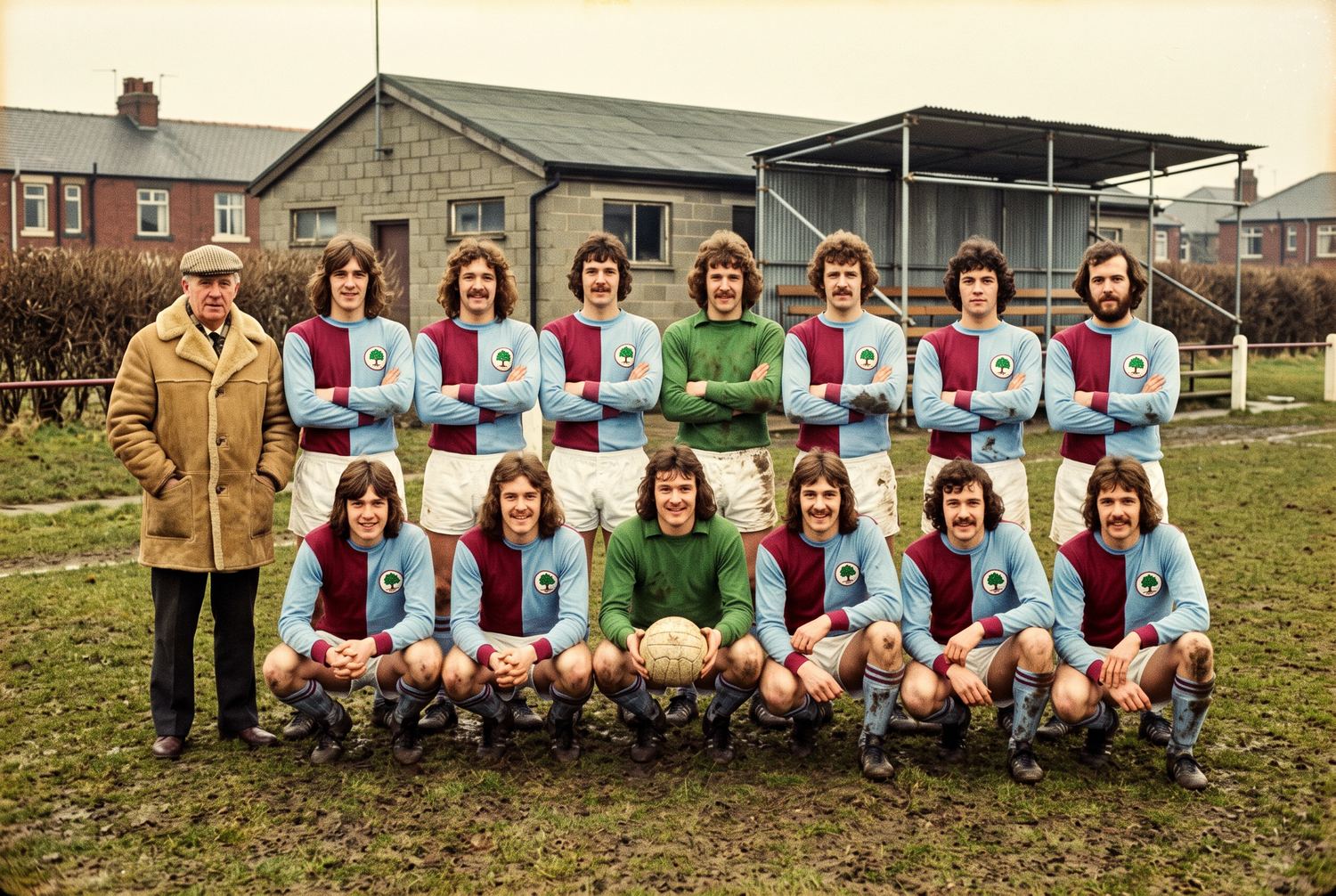
Your Original stays exactly as you added it. Cirluma keeps both: the print as it is today, and the restored version beside it.
Step four: take it further, if you want
A restored photo is a starting point. Reshoot takes the same moment again as if on a modern camera. Reframe gives a Restore or Reshoot a new shape for a frame or format, extending the scene beyond the edges while keeping the people as they were. Each version is its own Creation, and the Original still stays untouched. For framing, see how to prepare a photo for a new frame.
Step five: keep the story with it
A restored photo on its own is half the work. Ask the person who knows it what they remember: who is in it, where it was taken, what happened just after. They can write it or record a voice note, and it stays with the photo in their name.
If you know the story yourself, record it now, while you are looking at the picture.
What to expect from a first attempt
Creases, dust, light damage and small marks usually come back cleanly. Deep tears and missing pieces are harder: Cirluma rebuilds what it can, guided by the print itself, and a Likeness reference made from other photos of the person helps keep a damaged face theirs. Compare the Creation with the Original before you decide what to print or share.
One print, one phone photo, one story
Restoring a print used to mean posting it to a specialist and waiting weeks. Now it takes one phone photo and a few minutes. Privacy, built in: nothing is public, and private Circle content is not used to train general-purpose AI models.
Find a print you have been meaning to sort out, and take its photo by a window this week.
Read the Journal on Google? Add Cirluma as a preferred source.
How to prepare a photo for a new frame
What actually has to happen between a creased print in a drawer and something worth hanging, including the aspect-ratio problem nobody warns you about.
Photos and restoration3 min read
How to date an old family photo
The back of a print, its album page and the people beside it may narrow the date more than the clothes alone.
Everyday memories2 min read




Start with one Circle
Bring together the people, photos, voices and stories that matter.